

How to Create Print-Ready Files
- Crino Designs
- Mar 31
- 3 min read

Creating a print-ready file might sound technical, but it’s actually quite simple once you understand the basics. Whether you’re designing your own artwork or sending files to print, getting this right ensures your final product looks clean, sharp, and professional.
This guide breaks everything down in a clear and easy way so you can submit your artwork with confidence.
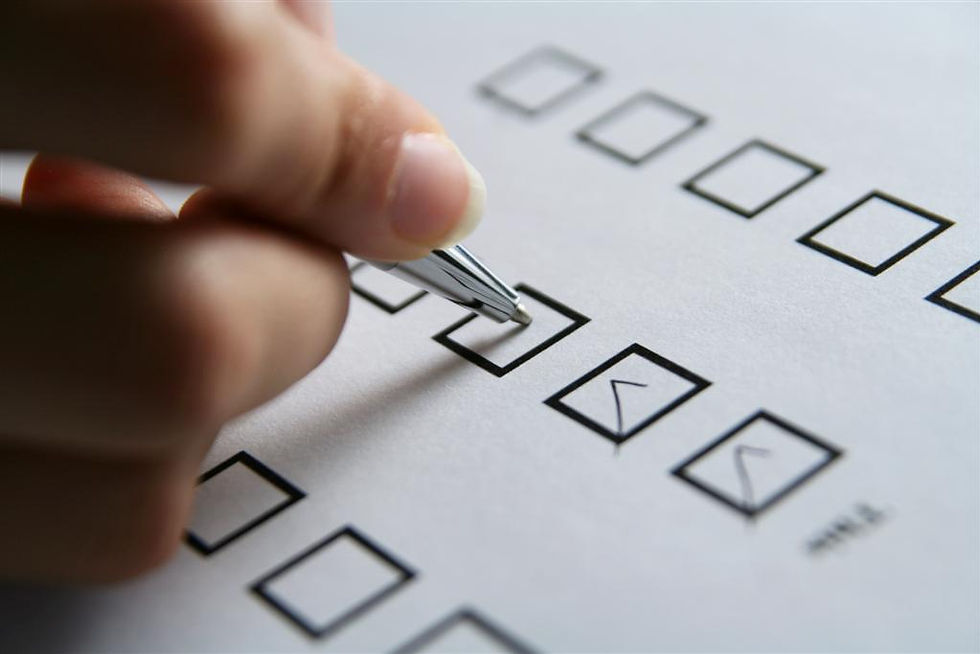
The Quick Checklist
If you just want the essentials, make sure:
• Your file is saved as a PDF
• Images are clear and high quality
• Colours are set for print (CMYK)
• There is extra space around the edges (bleed)
If you’ve ticked these off, you’re already on the right track.
Understanding Print-Ready Files
A print-ready file is a design that has been properly set up for printing. Unlike digital designs, print files need specific settings to ensure colours, sizing, and layout come out exactly as expected. Without these settings, you may end up with blurry images, incorrect colours, or important content being cut off.
Step 1: Set Up Your File Correctly
Your artwork should always be:
• Saved as a PDF
• Set to the correct final size
• Exported as single pages (not spreads unless required)
This ensures your file is ready to go straight into production without adjustments.
Step 2: Use High-Quality Images
Image quality plays a huge role in how your print turns out.
Make sure:
• All images are at least 300 DPI
• Nothing looks blurry or pixelated
• You avoid screenshots or low-resolution graphics
If it looks low quality on screen, it will look worse in print.
Step 3: Set Your Colours for Print
Print works differently to screens.
• Always design in CMYK colour mode
• Avoid bright or neon colours, as they don’t print accurately
• Use solid black for text to keep it crisp and readable
This helps ensure your colours print as close as possible to what you expect.
Step 4: Add Bleed and Margins
This is one of the most common mistakes.
• Add 3mm bleed on all sides
• Keep important text at least 5mm away from the edges
• Extend backgrounds and images into the bleed area
This prevents unwanted white edges and keeps your design looking clean after trimming.
Step 5: Check Your Fonts
To avoid any font issues during printing:
• Embed or outline all fonts
• Make sure no text is missing
• Keep text clear and away from edges
This ensures your design prints exactly as you created it.
Step 6: Set Up Special Finishes (If Needed)
If your project includes custom shapes or finishes like foil or spot UV:
• Place each element on a separate layer
• Clearly label each layer
• Ensure everything is set up correctly for production
This step is only needed for more advanced print jobs.
Step 7: Do a Final Check
Before submitting your file, take a moment to review everything:
• Check the size and layout
• Make sure bleed and margins are correct
• Remove any hidden elements
• Open the file on another device to confirm it works
A quick check now can save time and avoid reprints later.
Common Mistakes to Avoid
Here are the most common issues we see:
• Text too close to the edge
• No bleed added
• Low-quality images
• RGB colours instead of CMYK
Avoiding these will make a big difference in your final result.
Not Sure If Your File Is Ready?
That’s completely normal. Most clients aren’t designers, and that’s where we come in.
At Crino Designs & Print, every file is checked before printing. If anything needs adjusting, our team can fix it for you to ensure the best possible outcome.
We can help with:
• Bleed setup
• Colour adjustments
• Image quality fixes
• Font embedding
• Dielines and layer setup
A small fee applies, but it guarantees your print comes out exactly how it should.
Ready to get started or need a hand with your file? Reach out to us today, our team is hre to help perfect every details, so your print is flawless.

Comments